
New router? Moved apartments? Changed your Wi-Fi password? Then your Echo Dot needs the new details too!
I tested every step below in October 2026 with an Echo Dot (5th gen) and the latest Alexa app here in Japan. The screenshots are from the Japanese version of the app, so I’ve added what each button means in English.
💡 Quick answer: In the Alexa app, go to デバイス (Devices) → your Echo Dot → the gear icon → wifiネットワークを変更または削除 (Change or remove Wi-Fi network). Halfway through, you put the Echo Dot into setup mode (orange light). On my 5th gen, that took about 10 seconds of holding the Action button.
1. Before you start
- Your Wi-Fi name (SSID) and password
- The latest version of the Alexa app
- Your Echo Dot, plugged in
On many routers sold in Japan, the network name and password are printed on a sticker on the router itself. Don’t expect the word “password”, though. On NEC’s Aterm routers, for example, it’s labeled 暗号化キー (encryption key).
According to Amazon’s help pages, Echo devices connect to standard home Wi-Fi (802.11a/b/g/n) on both 2.4GHz and 5GHz. They can’t join ad-hoc (peer-to-peer) networks, and Amazon recommends at least 1.5Mbps.
| Model | 2.4GHz | 5GHz |
|---|---|---|
| Echo Dot (5th gen) | ✓ Works | ✓ Works |
| Echo Dot (3rd gen) | ✓ Works | ✓ Works |
💡 Seeing two network names? Many Japanese routers broadcast one for each band. NEC’s Aterm routers, for instance, end in -g for 2.4GHz and -a for 5GHz. And no, the 3rd gen isn’t 2.4GHz-only. Mine joined 5GHz just fine.
2. Check your current connection
First, see how your Echo Dot is doing right now.
- In the Alexa app, open デバイス (Devices) and pick your Echo Dot
- Tap the gear icon in the top right (Settings)
- Under wifiネットワーク (Wi-Fi network), check the connection status and speed test
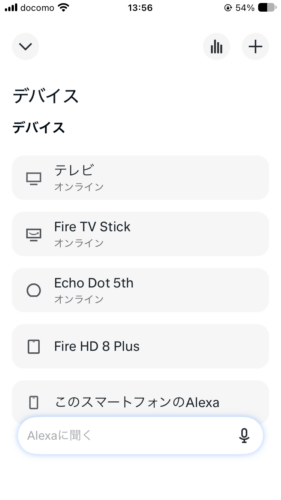
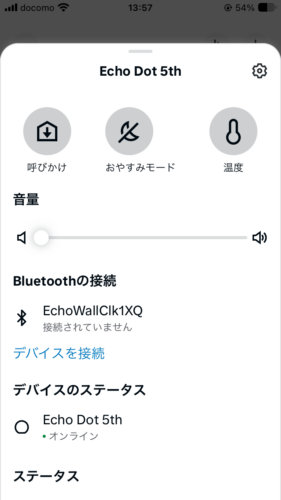
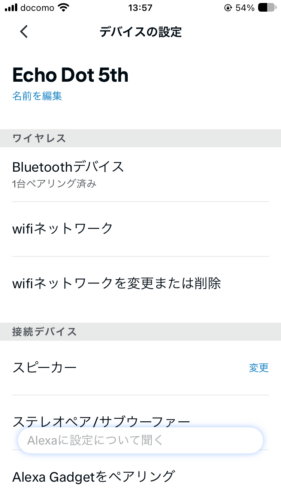
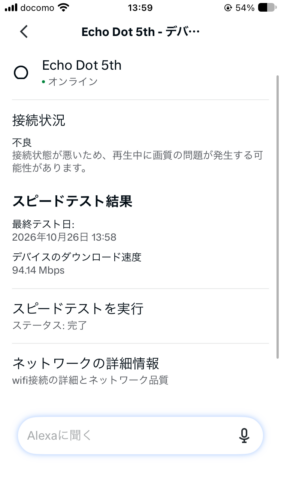
💡 Mine showed a download speed of 94.14Mbps, yet the status said 不良 (poor). That was before I switched networks. A fast speed test doesn’t guarantee a stable connection. If your music keeps cutting out, try reconnecting with the steps below.
3. How to change the Wi-Fi network
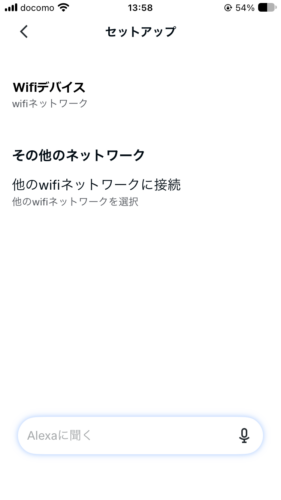
- In the device settings, tap wifiネットワークを変更または削除 (Change or remove Wi-Fi network)
- Choose 他のwifiネットワークに接続 (Connect to another Wi-Fi network)
- Put your Echo Dot into setup mode as the app shows you (on the 5th gen, hold the Action button)
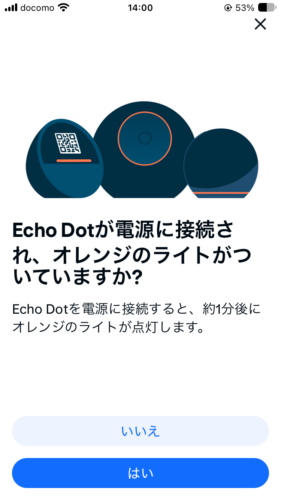
- When the light turns orange (about 10 seconds), tap 次へ (Next), then はい (Yes)
- Select the “Echo Dot” the app finds
- Choose your Wi-Fi network and enter the password
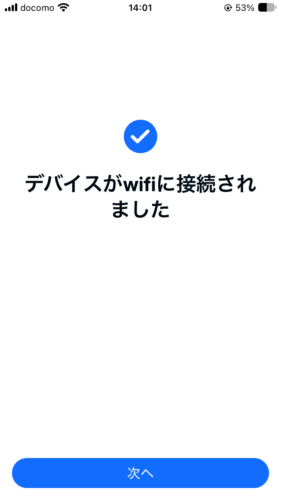
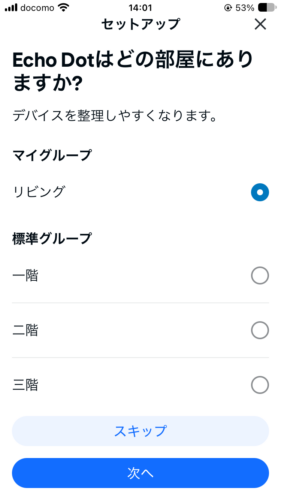
- When you see デバイスがwifiに接続されました (Your device is connected to Wi-Fi), pick a room and you’re done!
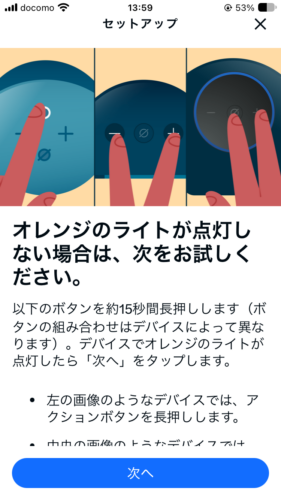
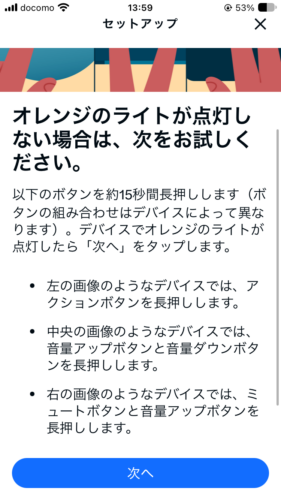
💡 The button depends on your model. The app shows three options: アクションボタン (Action button), 音量アップ+音量ダウン (Volume up + Volume down), and マイクオフ+音量アップ (Mic off + Volume up). On my Echo Dot (5th gen), holding the Action button turned it orange in about 10 seconds.
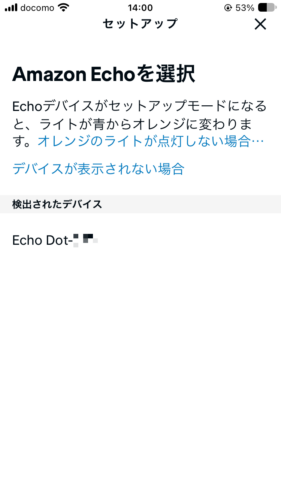
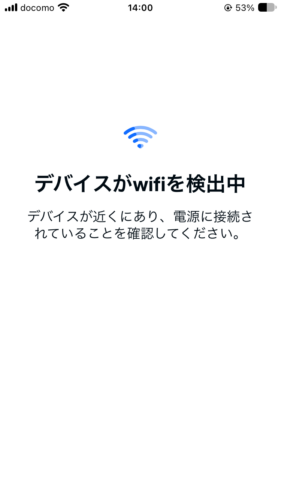
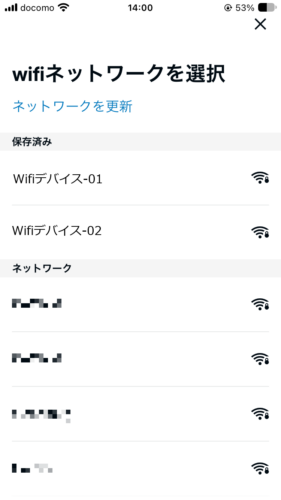
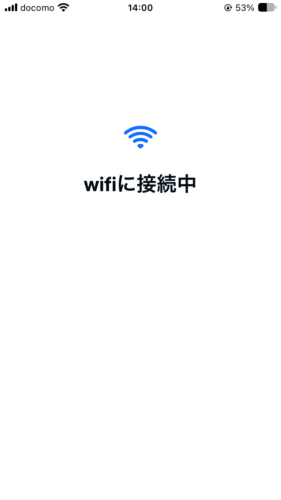
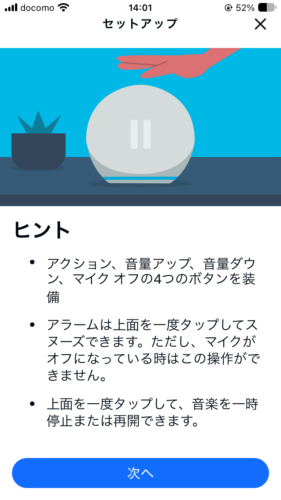
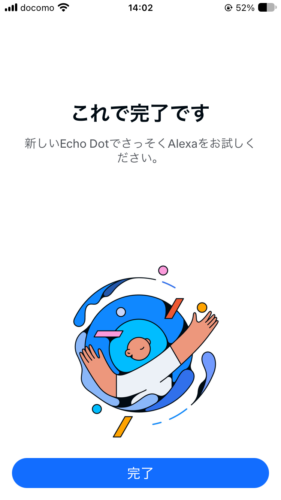
That’s it. Your Echo Dot is on the new network.
4. Still not connecting? Try these
Here are Amazon’s own fixes, in the order I’d try them.
- Move closer to the router: within about 9–10 m
- Keep it away from interference: microwaves, baby monitors and other electronics
- Restart both: restart your router, and while it’s rebooting, unplug your Echo Dot for 30 seconds and plug it back in
- Double-check the password: it’s case-sensitive
- Try the other band: if your router shows two network names (2.4GHz and 5GHz), connect to the other one
- Turn off other devices for a moment: too many devices on one network can get in the way
- Changed your Wi-Fi password? Update your Echo Dot with the steps above
💡 Can’t get your phone or laptop online either? Then the problem is probably the network, not your Echo. Wait a few hours, or check with your internet provider.
5. What the light colors mean
Your Echo Dot’s light tells you what’s going on. Here are the ones that matter for Wi-Fi.
| Light | Meaning |
|---|---|
| Orange | Setup mode, or trying to connect to the internet |
| Purple | A Wi-Fi problem during setup (it also flashes purple briefly in Do Not Disturb mode) |
| Cyan and blue, slowly spinning | Starting up |
| Red | Microphone off (not a Wi-Fi problem) |
💡 Red doesn’t mean your Wi-Fi is broken. It just means the mic is off. Press the mic button again to turn it back on.
6. The bottom line
- To change Wi-Fi: デバイス (Devices) → Echo Dot → Settings → wifiネットワークを変更または削除
- Put the Echo Dot into setup mode (orange) when asked. On the 5th gen, hold the Action button for about 10 seconds
- Both my 5th gen and 3rd gen Echo Dots connected on 2.4GHz and 5GHz
- The status can say 不良 (poor) even with a fast speed. Reconnect if it’s unstable
- On the router sticker, the password may be labeled 暗号化キー (encryption key)
- Red light = mic off. Wi-Fi trouble shows up as orange or purple
Got your Echo back online? Turn it into a Japanese radio with How to Listen to radiko on Echo Dot. Wondering if it’s ready for Amazon’s next-gen assistant? See Does Your Echo Work with Alexa+?
Sources: Amazon: Update Wi-Fi settings for your Echo device, Amazon: Wi-Fi issues with your Echo device, Amazon: Echo light indicators, NEC Aterm Q&A (network names and 暗号化キー) (all checked October 2026; Amazon pages are in Japanese)
See the Echo Dot (5th Gen) on Amazon Japan
This article is based on hands-on testing by the author. AI tools such as Claude were used to assist with research and drafting, and the author reviewed the content before publishing.