
Opened your Kindle app in Japan recently and noticed “Kindle Unlimited” has turned into “Kindle+”? You’re not imagining it.
I signed up for the free trial on my own Amazon.co.jp account and tested everything: borrowing, returning, reading across devices, and even having my Echo Dot read a novel out loud. Here’s what I found, with real screenshots.
1. What is Kindle+? Same service, new name
Kindle+ is Amazon’s all-you-can-read subscription for eligible Kindle books, manga and magazines. On October 22, 2026, Amazon renamed Kindle Unlimited to Kindle+.
In Japan, only the name and design changed. How the service works is the same, and the Japanese terms of use were updated on October 21 with the new name.
💡 Tip: You’ll still spot “Kindle Unlimited” in some corners of the Amazon site and app. It’s the same service.
One thing that differs by country: Amazon has announced audiobooks for Kindle+ in the US, but they aren’t part of Kindle+ in Japan for now. On November 4, 2026, I saw no audiobook option in the app or in Kindle Cloud Reader.
💡 Tip: Prefer English? Amazon.co.jp can be switched to English from the language menu at the top of the site, which makes the sign-up screens much easier to follow.
2. Already a Prime member? Kindle+ vs Prime Reading
If you have Prime, you may be thinking Prime Reading is enough. I’m a Prime member too, so I used it for a while before trying Kindle+.
The big differences are how many books you can choose from and how many you can hold at once.
| Kindle+ | Prime Reading | |
|---|---|---|
| Who can use it | Kindle+ members | Prime members |
| Catalog (Amazon’s wording) | Millions of titles | 1,000+ titles |
| Books at a time | 20 | 10 |
| Latest magazine issues | Yes | Some |
Prime Reading’s catalog is a rotating selection drawn from Kindle+ titles (Amazon Help). When you hit your limit, return one and borrow the next.
What happened when I joined Kindle+: the books I’d borrowed through Prime Reading stayed in my library, and Kindle+ books were counted separately. In the app, titles now show only the “Kindle+” label.
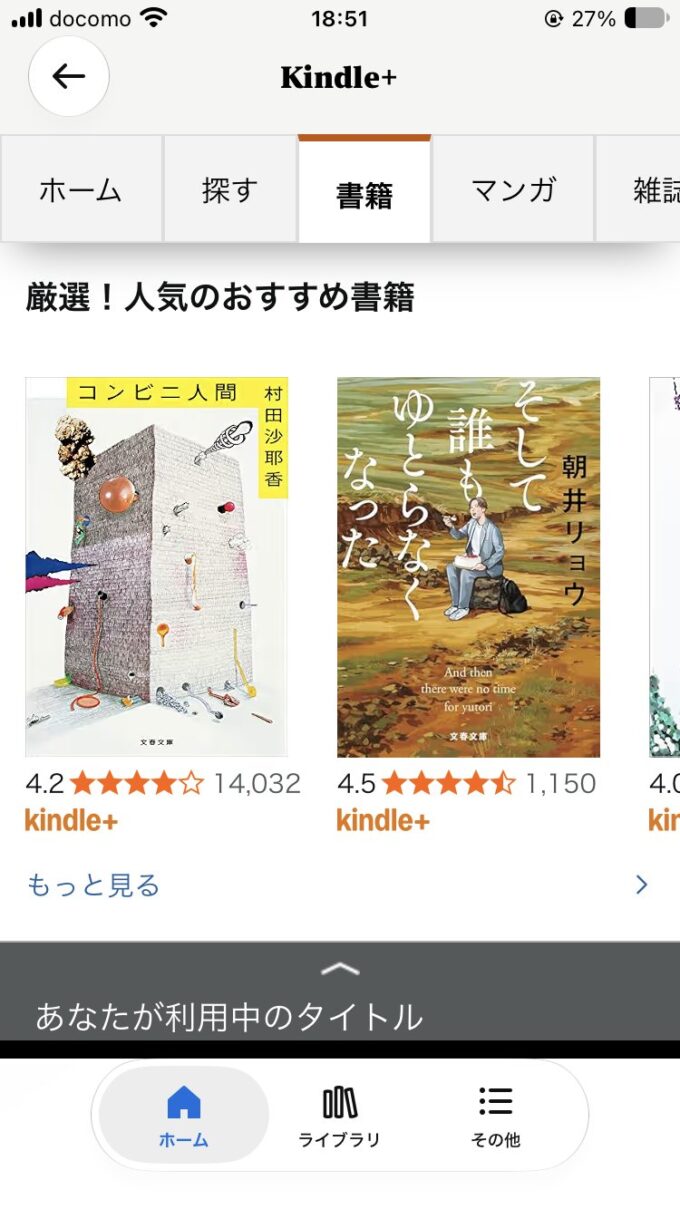
💡 Tip: Before you sign up, the product page tells you which program a book is in: “Kindle+会員は無料” means Kindle+, and “プライム会員の方は読み放題” means Prime Reading.
My take: the number of books I could borrow jumped so much that choosing what to read became the hard part!
3. Starting the 30-day free trial
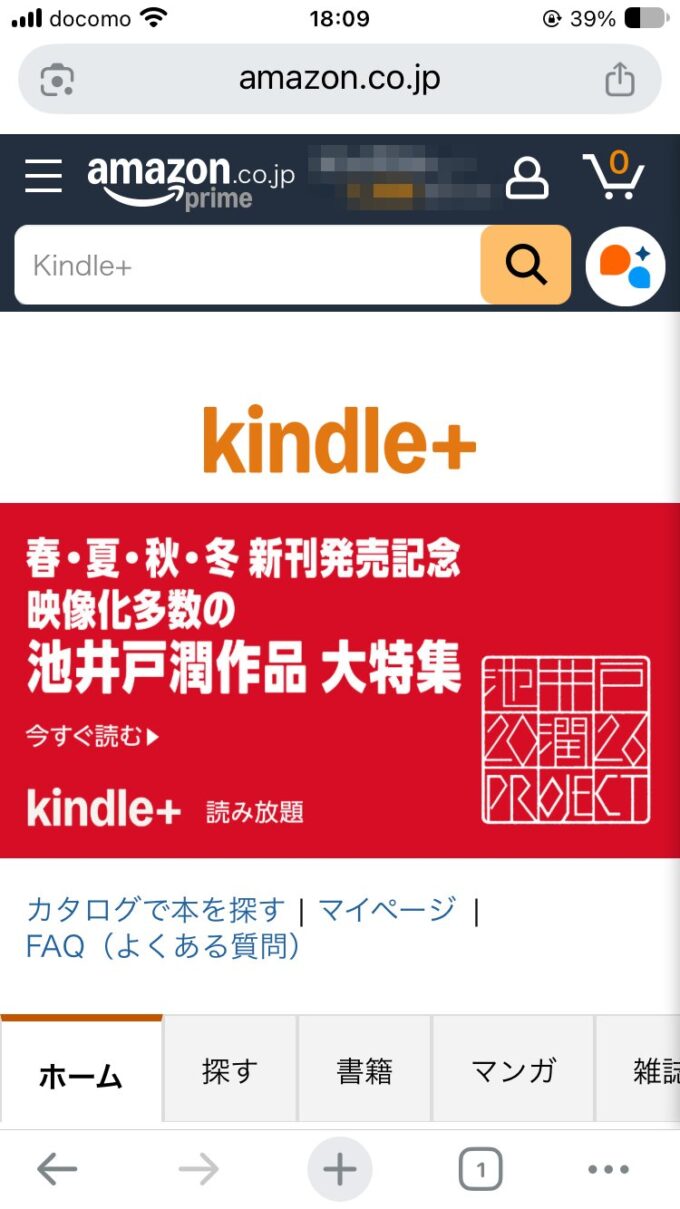
First-time members can start with a 30-day free trial. It takes three steps:
- Open the Kindle+ page on Amazon.co.jp
- Choose “30日の無料体験” (30-day free trial) and tap “Kindle+に登録して、30日間の無料体験を始める”
- Check the confirmation screen and the welcome email
▶ Start the Kindle+ 30-day free trial (Amazon.co.jp)
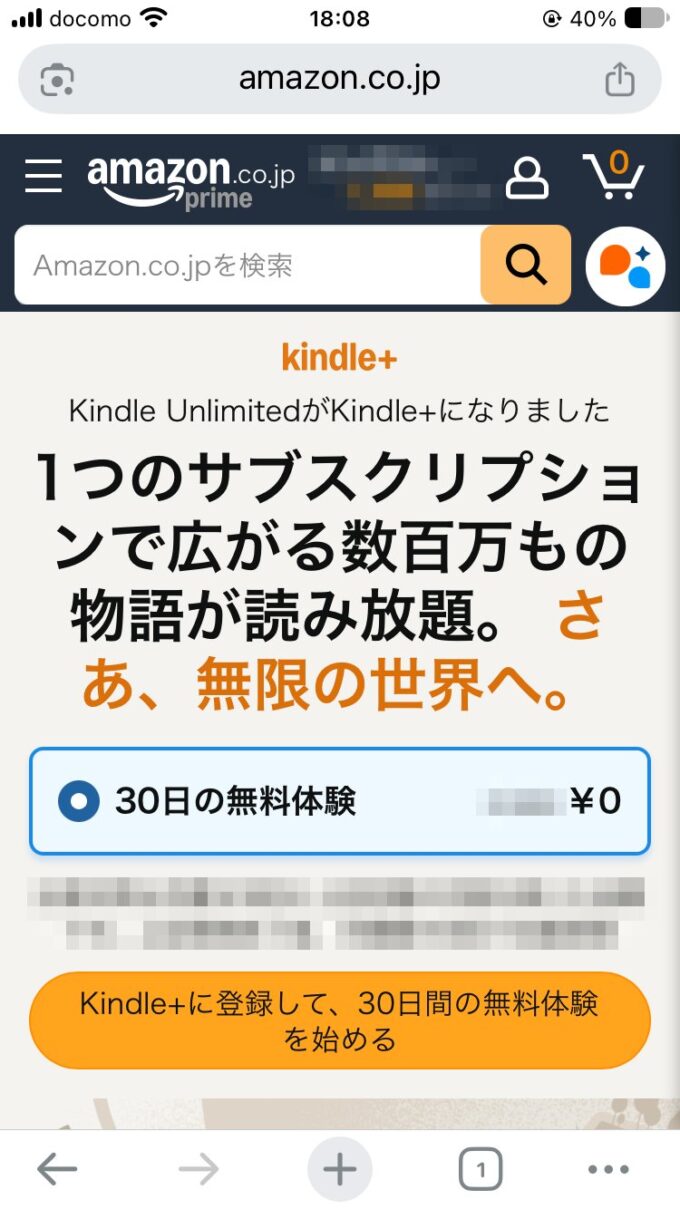
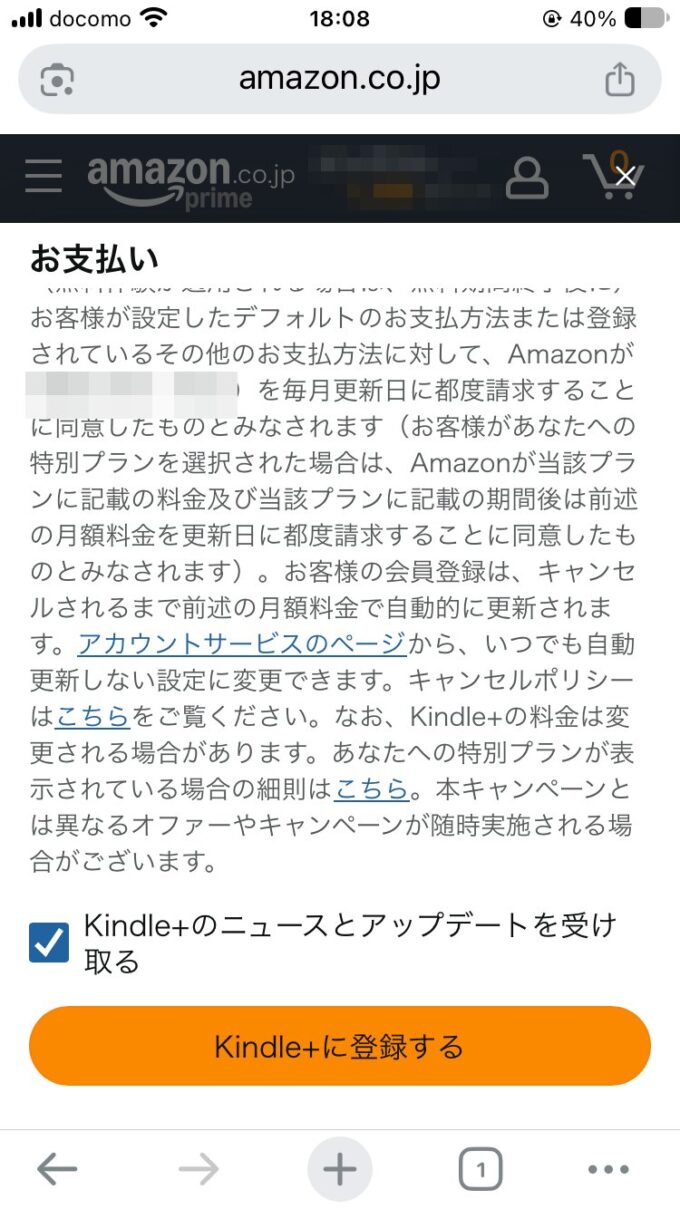
💡 Tip: The trial is generally for accounts that have never used the service. If you’ve used it before, check what the sign-up screen shows you. The fee is shown there too.
To see when your trial ends, open “マイページ” (My Page) on the Kindle+ page. Under “あなたの会員プラン” you’ll find the trial’s start and end dates, plus your next billing date.
4. Finding, borrowing and returning books
- In the Kindle app, go to “本を検索” (Search books) → “Kindle+” and browse the Books, Manga and Magazines tabs
- On a title marked “Kindle+ メンバーシップに含まれています” (included with your membership), tap “ライブラリに追加する” (Add to library). This is how it works in the iPhone app
- The book appears in your library, ready to read
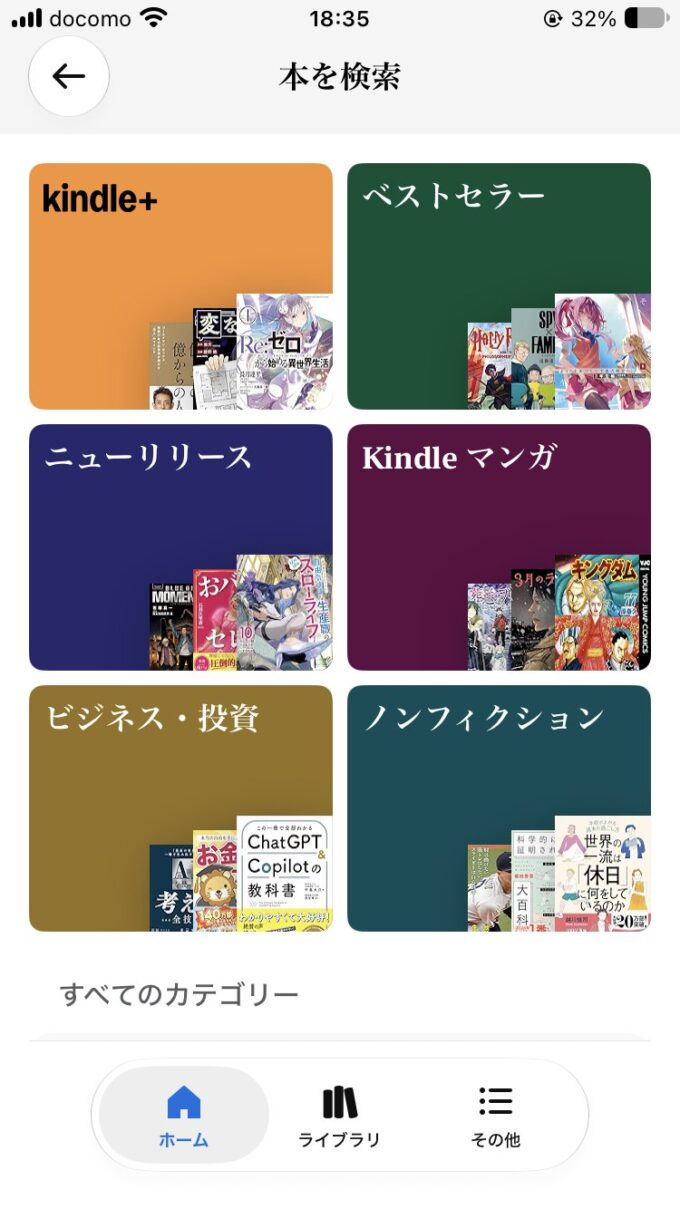
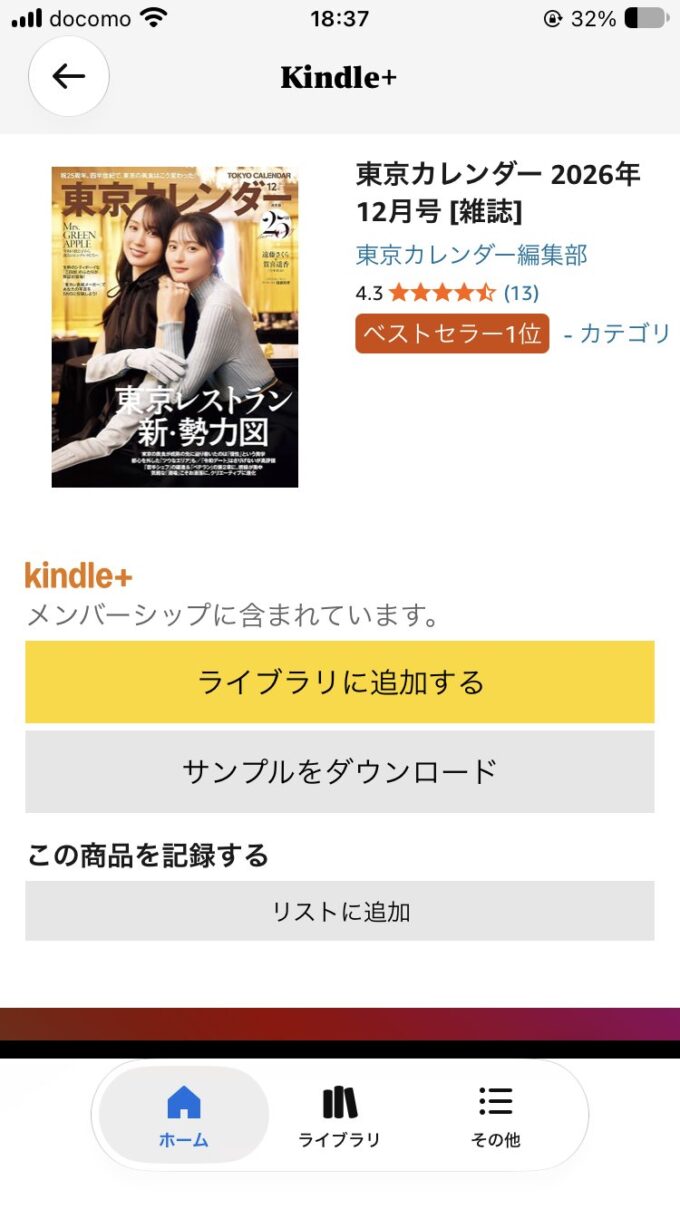
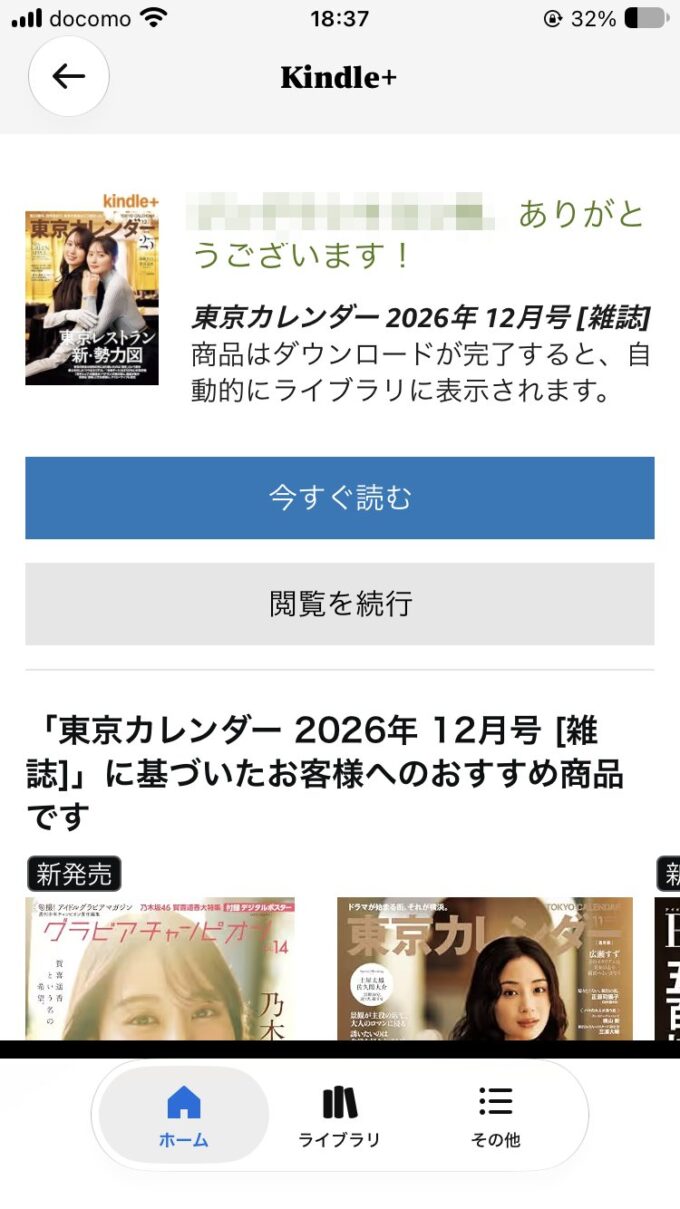
You can hold up to 20 titles at once. To borrow a 21st, return one. I returned a magazine and borrowed it again, and it came straight back.
To return a book, long-press its cover in your library and choose “本の利用を終了” (End use of this book).
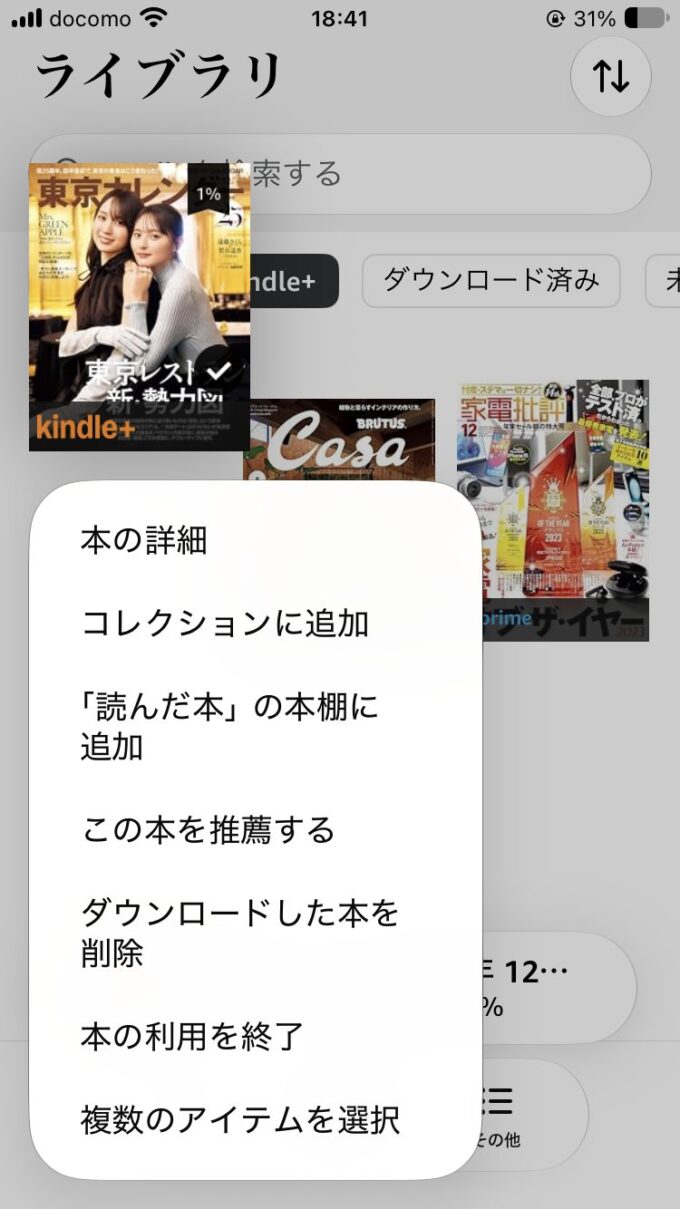
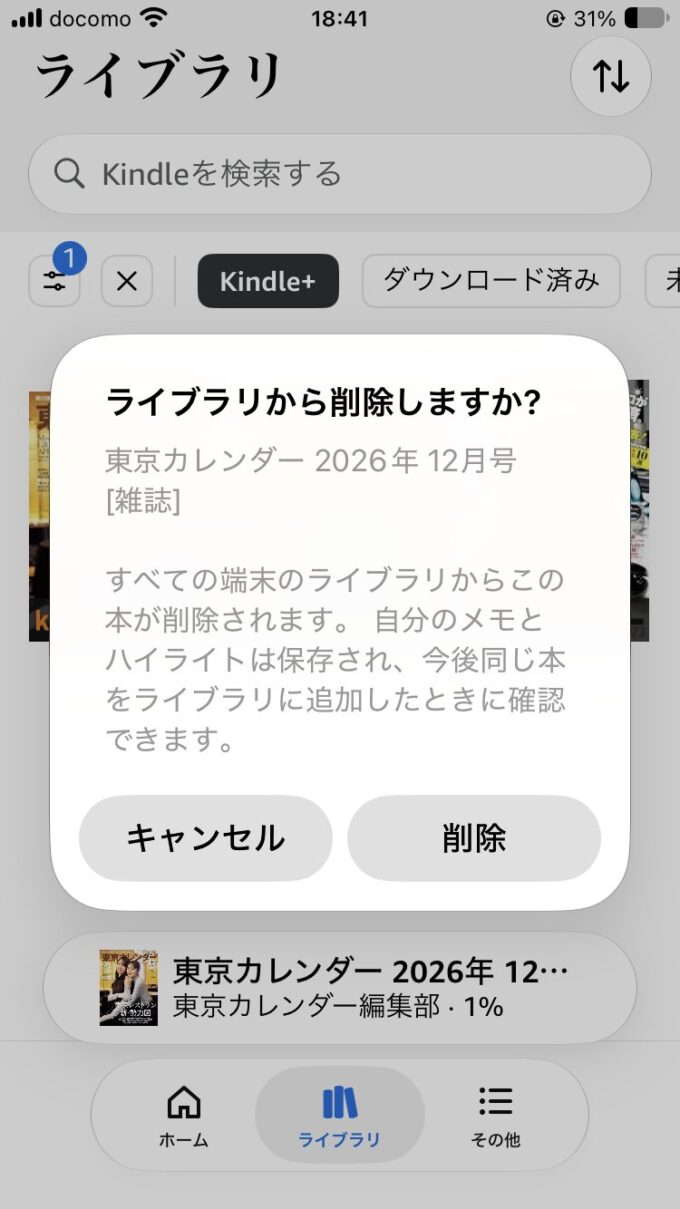
💡 Tip: The confirmation pop-up asks “ライブラリから削除しますか?” (Remove from library?). Don’t panic: that’s the return. Your notes and highlights are kept for next time.
💡 Tip: Returned books disappear from “コンテンツと端末の管理” (Manage Your Content and Devices). Your borrowing history lives on the Kindle+ My Page instead.
New magazine issues keep arriving: open the Magazines tab and you’ll see the latest issues tagged “新発売” (new release). Titles also rotate in and out, and there are limited-time features, so borrow anything that catches your eye sooner rather than later.
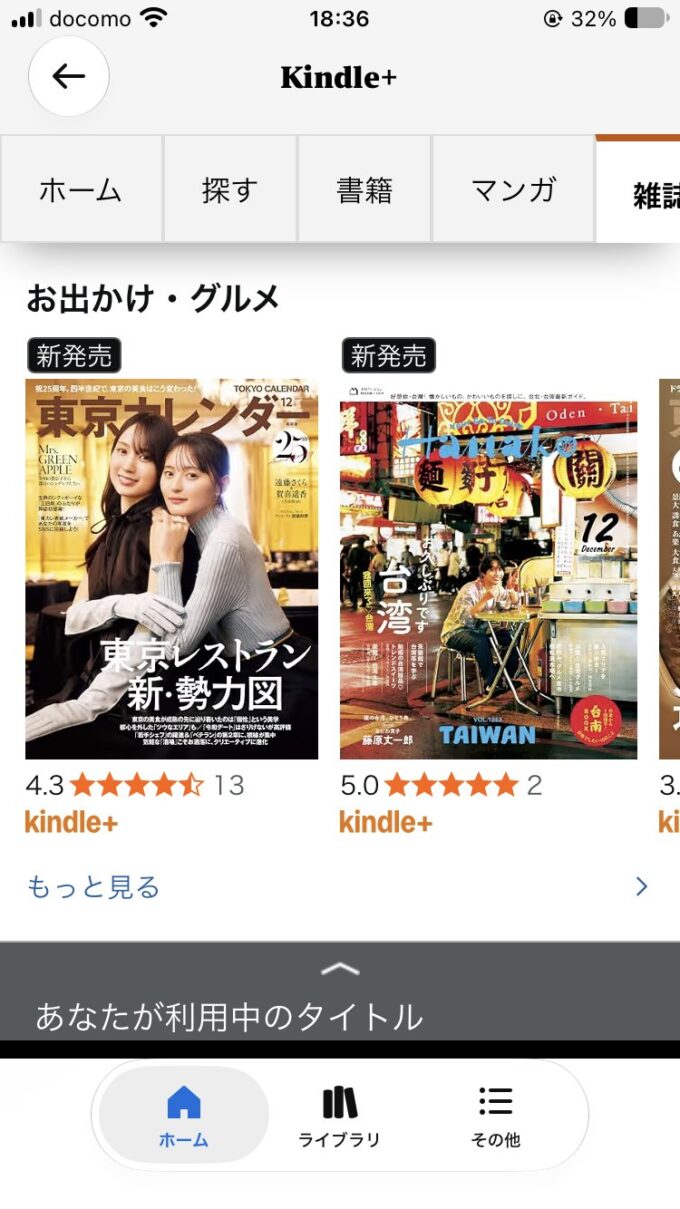
My take: 20 is plenty to start with. I return magazines once I’ve read them and keep only one or two volumes of a novel at a time. If I want something again, I just borrow it again.
5. Phone, tablet or browser: where it reads best
You don’t need a Kindle device. Kindle+ works in the Kindle app on phones and tablets, and in a web browser with Kindle Cloud Reader. A magazine I borrowed on my phone opened in the browser on my PC with no extra steps.
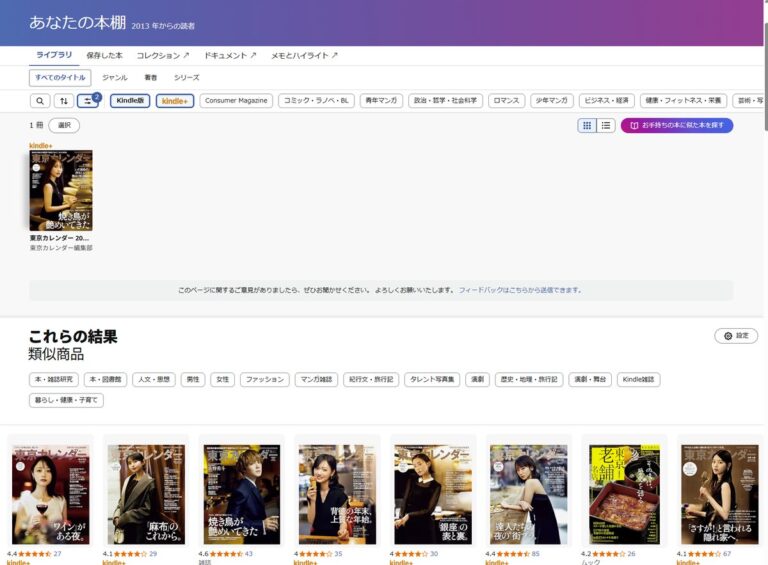
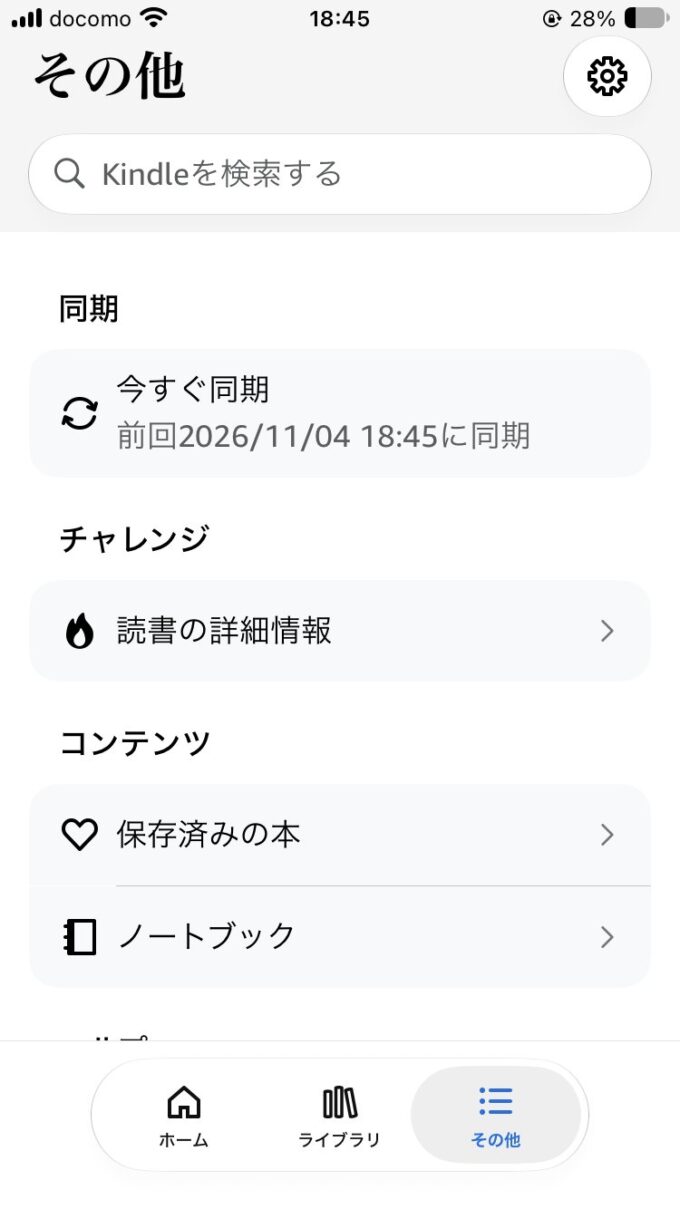
Your reading position syncs too. In the app, “その他” (More) → “今すぐ同期” (Sync now) pushes it across right away.
My take: a tablet wins, hands down. Magazines are honestly a struggle on an iPhone screen. Trying Kindle+ made it clear what each device is for: a Kindle e-reader for books, a Fire HD tablet for magazines.
💡 Tip: If you’re a Prime member and want to see only your Prime Reading titles, Kindle Cloud Reader in a browser can filter them. The app can’t, at least for now.
6. Getting Alexa to read your Kindle books
This is the part I was most curious about as a smart-speaker site. With an Echo Dot, you can just ask:
“アレクサ、Kindleで読み上げて” (Alexa, read it on Kindle)
My Echo Dot answered: “Kindle (title), Kindle読書補助機能で読み上げます” (reading with Kindle’s reading-assist feature), and started reading. A Japanese novel I borrowed through Kindle+ worked fine.
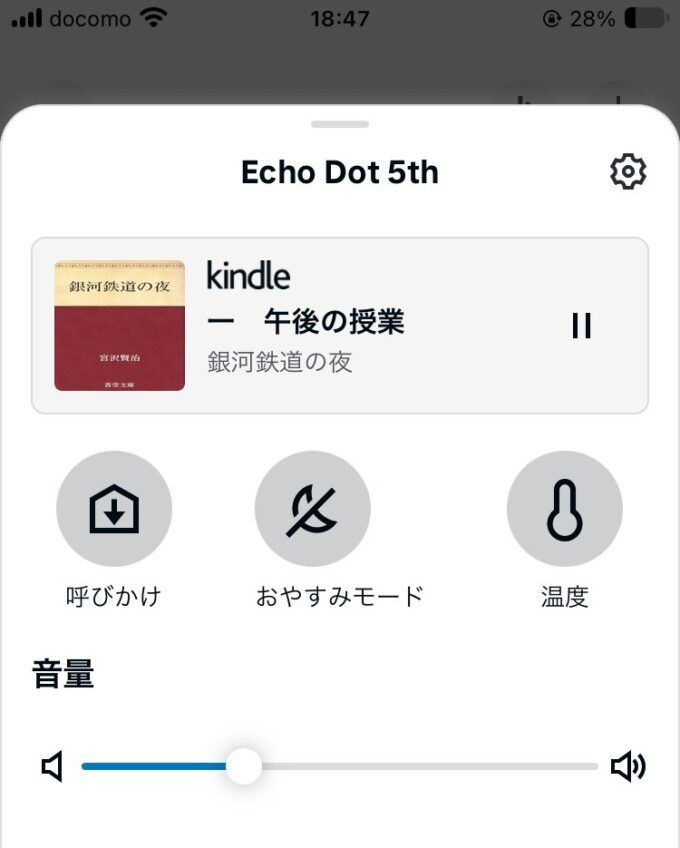
Not everything can be read aloud. Novels worked; magazines didn’t. Manga isn’t supported either, according to reports from when the feature launched in 2018.
The product page won’t tell you in advance: both the novel and the magazine I tried say “スクリーンリーダー:サポート対象” (screen reader: supported). Luckily, Alexa tells you. When I asked for a magazine, the reply was that the issue “読み上げ機能に対応していません” (doesn’t support read-aloud). The quickest test is to borrow the book and ask.
💡 Tip: My Echo is set to Japanese, so say “アレクサ” with Japanese pronunciation. An English-style “Alexa” didn’t get a response in my earlier tests.
My take: it’s still a synthetic voice. For a novel you want to really sink into, a professionally narrated audiobook is the better choice.
7. Not sure whether to keep it?
Return books as you finish them so your 20 slots stay open. It makes browsing a lot more fun.
As the trial end date gets closer, check the Kindle+ My Page (the membership management page). From there you can also set up a reminder email three days before renewal. I’ll share an honest one-month review in a follow-up post for anyone still on the fence.
Wrap-up
- Kindle+ is the new name for Kindle Unlimited. In Japan, the service itself hasn’t changed
- You can hold up to 20 books at a time
- First-time members can try it free for 30 days
- Read on your phone, tablet or browser, and have Alexa read novels aloud
▶ Start the Kindle+ 30-day free trial (Amazon.co.jp)
Information as of November 4, 2026, based on Amazon.co.jp in Japan. Check the sign-up screen for the latest details and pricing.