
Want to play music from your phone through your Echo Dot? Or send your Echo Dot’s sound to a better speaker? Both work over Bluetooth!
I rewrote this guide in November 2026 after testing every step on my Echo Dot (5th gen) and Echo Dot (3rd gen), here in Japan. The Alexa app screenshots are in Japanese, so I’ve added English for every label. I’ve also kept the parts where I got stuck.
💡 Quick answer
・Pair a new device from the Alexa app. Alexa couldn’t find a new device by voice alone
・After that, just say アレクサ、スマートフォンを接続して to reconnect
・Your Echo Dot can also play through a Bluetooth speaker
・On Windows 11, add the Echo Dot from the Sound settings, or you may get no audio
1. Two ways to use Bluetooth
| What you want | Sound goes | Example |
|---|---|---|
| ① Use the Echo Dot as a speaker | Phone or PC → Echo Dot | Play Apple Music from your iPhone on the Echo Dot |
| ② Connect the Echo Dot to another speaker | Echo Dot → Bluetooth speaker | Play Alexa’s music through a soundbar |
Both are listed in the specs on the Echo Dot (5th gen) product page on Amazon Japan.
2. How to pair your iPhone
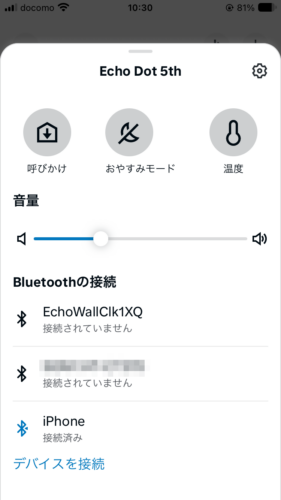
Amazon’s help page says to go to Devices in the Alexa app, pick your Echo Dot, then Device Settings → Bluetooth → Pair a New Device (Amazon help, in Japanese). In my app, the デバイスを接続 (Connect a device) link on the device screen took me to the same place.
- In the Alexa app, open デバイス (Devices) and tap your Echo Dot
- Under Bluetoothの接続 (Bluetooth connections), tap デバイスを接続 (Connect a device)
- When you see 「BluetoothデバイスをEcho Dotとペアリングします」 (Pairing a Bluetooth device with Echo Dot), your Echo Dot is ready to pair
- On your iPhone, open Settings → Bluetooth
- Under Other Devices, tap “Echo Dot-xxx”
- Once it says Connected, you’re done!
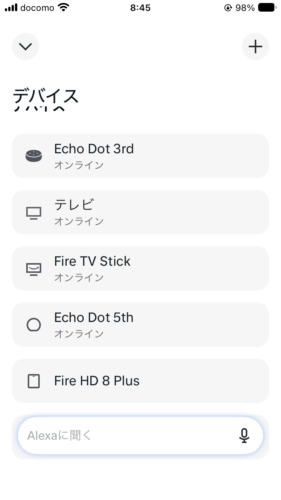
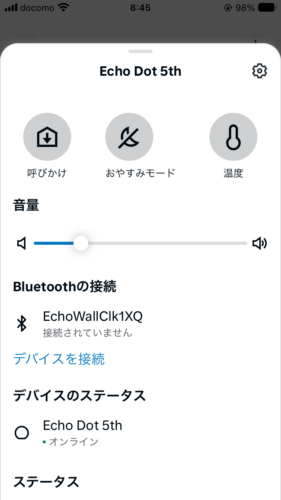
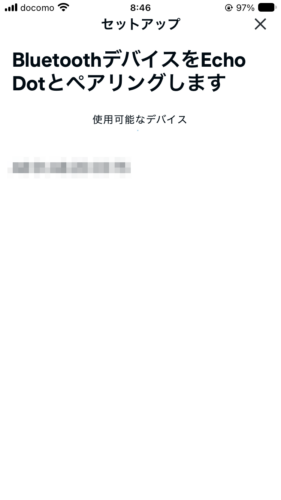
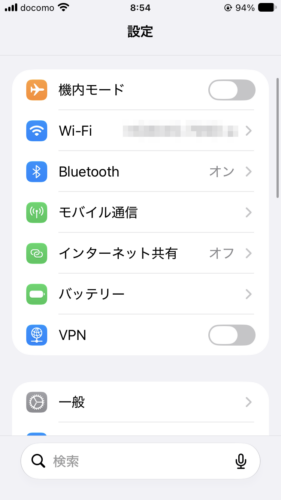
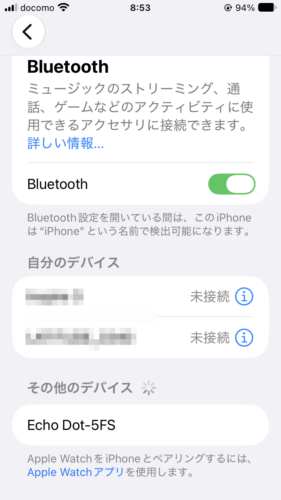
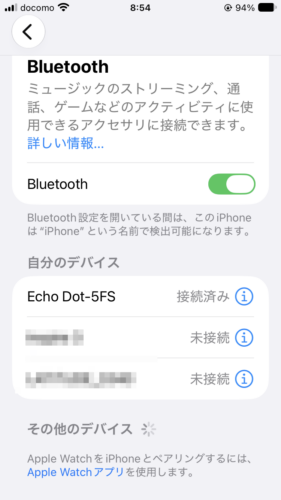
💡 The order matters. Put the Echo Dot into pairing mode in the Alexa app first, then pick it on your iPhone. When I searched from the iPhone first, the Echo Dot never showed up.
My Echo Dot (3rd gen) worked exactly the same way, steps and voice replies included.
3. What you can (and can’t) do by voice
Once your iPhone has been paired, you can reconnect it by voice. My Echo Dots are set to Japanese, so these are the Japanese phrases I used and what Alexa said back.
| What I said | What happened |
|---|---|
| アレクサ、スマートフォンを接続して (Arekusa, sumātofon o setsuzoku shite) (“Alexa, connect my phone”) | “Searching” → “Connected to iPhone” |
| アレクサ、スマートフォンの接続を解除して (Arekusa, sumātofon no setsuzoku o kaijo shite) (“Alexa, disconnect my phone”) | “Disconnected from iPhone” |
| アレクサ、Bluetoothを接続して (Arekusa, Bluetooth o setsuzoku shite) (“Alexa, connect Bluetooth”) | “Searching”, then a chime, then it reconnected to the last device |
| Trying to pair a new device by voice | “No devices found… You can set up new devices in the Alexa app” |
💡 Alexa couldn’t pair a brand-new device by voice. Do the first pairing in the app. After that, your voice is enough.
I also tried controlling playback while Apple Music was playing on my iPhone.
| What I said | Result |
|---|---|
| アレクサ、一時停止 (Arekusa, ichiji teishi) (“Alexa, pause”) | ◯ Paused |
| Asking Alexa to resume the phone | ✕ Didn’t resume |
| アレクサ、次の曲 (Arekusa, tsugi no kyoku) (“Alexa, next song”) | △ Instead of skipping on my iPhone, Alexa started an Amazon Music song I’d played before, on top of my iPhone’s music |
💡 Watch out for “next song”! Alexa seems to go with its own play history. Skip and resume on your iPhone instead. If you just want silence, disconnecting the phone by voice stopped the music too.
4. Play your Echo Dot through another speaker
You can also send your Echo Dot’s sound to a Bluetooth speaker or soundbar you already own. I tried it with an external speaker at home, and music I played through Alexa came out of it.
- Put your speaker in pairing mode (check its manual)
- In the Alexa app, open the same screen as in step 2 (Connect a device / Pair a New Device)
- Tap your speaker’s name when it shows up
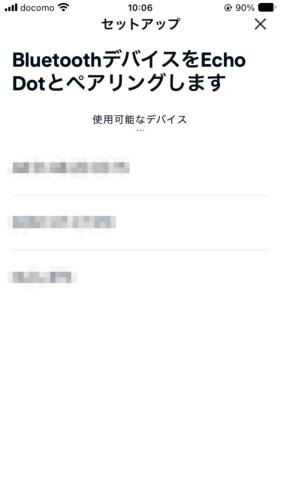
To switch back, say アレクサ、Bluetoothを切断して (Arekusa, Bluetooth o setsudan shite) (“Alexa, disconnect Bluetooth”). Alexa said “Disconnected from the speaker” and the sound came from the Echo Dot again.
💡 According to the Amazon Japan product page, devices that need a PIN code to pair over Bluetooth aren’t supported.
5. Connect a PC (Windows 11 or Mac)
On my Windows 11 Pro laptop, the Echo Dot played the PC’s sound just fine. But where you add it matters.
- Put the Echo Dot into pairing mode in the Alexa app (step ③ in section 2)
- On Windows, open Settings → System → Sound
- Next to “Pair a new output device”, click Add device and pick the Echo Dot
- Make sure “Echo Dot” is selected as the output
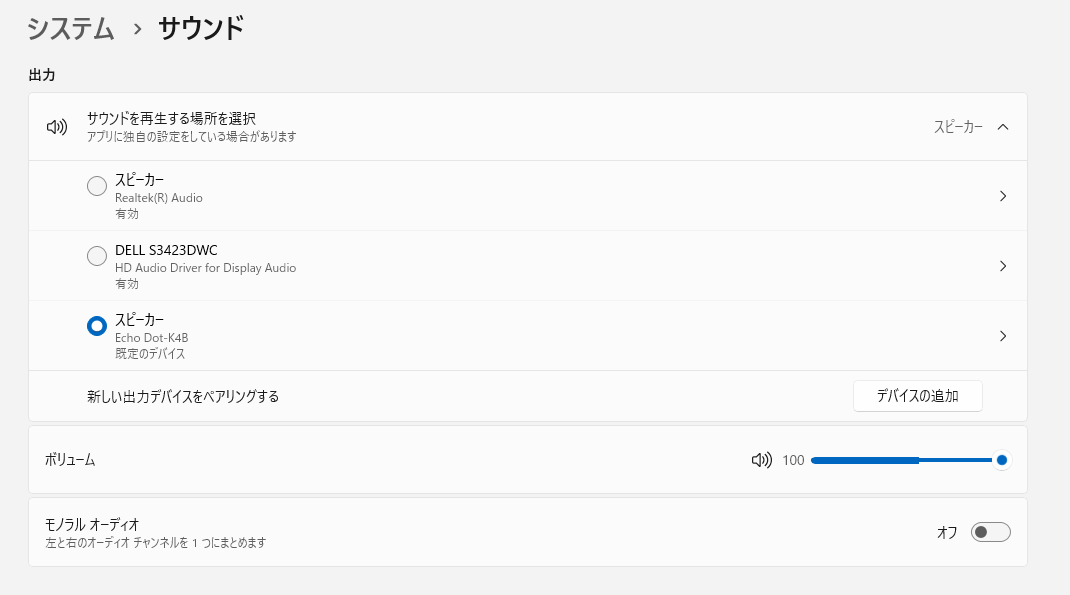
💡 When I added the Echo Dot from Bluetooth & devices instead, it connected but I got no sound. Adding it from the Sound page is the trick.
A Mac can play through the Echo Dot too. But the Amazon Japan product page says voice controls like play and stop don’t work with a Mac.
6. Disconnect or remove a paired device
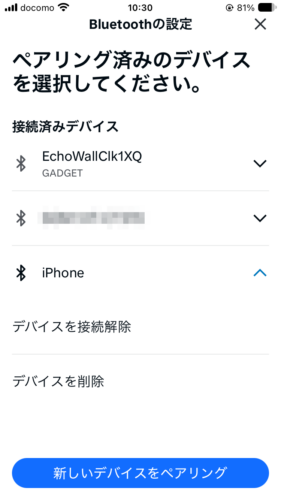
You can disconnect a paired device or remove it from the list in the Alexa app.
- On the device screen, open Bluetoothの接続 (Bluetooth connections)
- Pick a device under 「ペアリング済みのデバイス」 (Paired devices)
- Tap デバイスを接続解除 (Disconnect, for now) or デバイスを削除 (Delete, removes it from the list)
7. If it won’t connect
Amazon’s help page suggests checking these (Amazon help, in Japanese):
- Update your Echo Dot’s software
- Make sure your phone uses a profile Alexa supports (A2DP and AVRCP)
- Move away from microwaves, baby monitors and similar devices
- Charge the device you’re pairing and keep it near the Echo Dot
- Delete the device in the Alexa app and pair it again
What worked for me was simply doing things in the right order. Set the Echo Dot to pairing mode in the app, then pick it on your phone or PC. That’s it.
A shaky Wi-Fi connection can also make Alexa slow to answer. More on that here: How to change Wi-Fi on your Echo Dot / Alexa slow or not responding? Fixes I timed
8. Echo Dot 3rd gen vs 5th gen
Bluetooth worked the same on both. The difference is on the back.
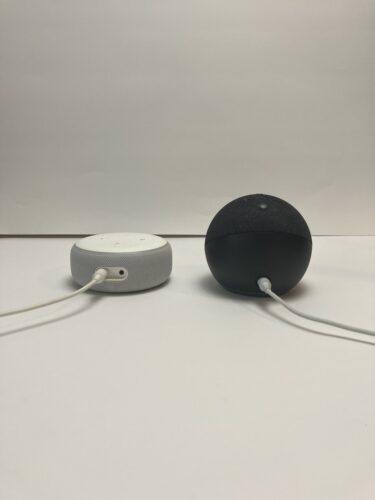
The 3rd gen has a small 3.5 mm audio out jack next to the power port, so you can also connect a speaker with a cable. The 5th gen only has a power port, so Bluetooth is the way to go if you want a bigger speaker.
9. The bottom line
| What you want to do | How |
|---|---|
| Pair your phone for the first time | Set the Echo Dot to pairing mode in the Alexa app, then pick it in your phone’s settings |
| Reconnect later | アレクサ、スマートフォンを接続して |
| Disconnect | アレクサ、スマートフォンの接続を解除して |
| Play through another speaker | Put the speaker in pairing mode and pick it in the Alexa app |
| Connect Windows 11 | Settings → System → Sound → Add device |
| Remove a device | Tap デバイスを削除 (Delete) in the Alexa app |
Shopping for an Echo Dot? Check the Echo Dot (6th gen) or the Echo Dot (5th gen) on Amazon Japan for current prices.
Sources: Amazon: Pair your phone or a Bluetooth speaker with your Echo device, Amazon: Bluetooth issues with your Echo device, Amazon: Echo Dot (5th gen) product page (all checked November 2026; Amazon pages are in Japanese)